
SLIDE 1
CS193p Winter 2017
Stanford CS193p
Developing Applications for iOS Winter 2017
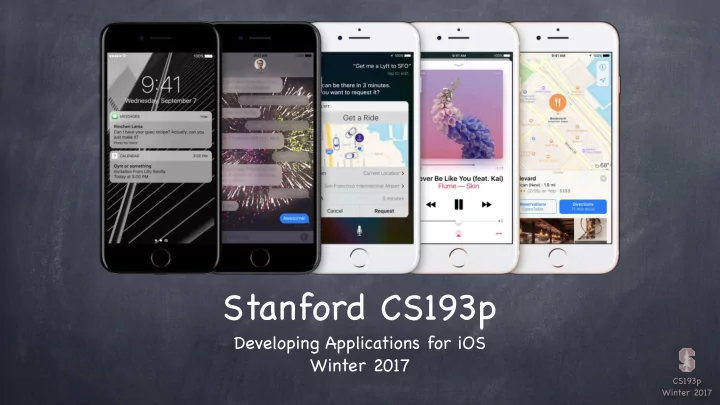
Stanford CS193p Developing Applications for iOS Winter 2017 CS193p - - PowerPoint PPT Presentation
Stanford CS193p Developing Applications for iOS Winter 2017 CS193p Winter 2017 Today Timer Periodically execute a block of code Blinking FaceIt Demo Animation Animating changes to UIView s Smoother Blinking FaceIt Head-shaking FaceIt
CS193p Winter 2017
Developing Applications for iOS Winter 2017
CS193p Winter 2017
Timer
Periodically execute a block of code Blinking FaceIt Demo
Animating changes to UIViews Smoother Blinking FaceIt Head-shaking FaceIt Animating using simulated physics (time permitting)
CS193p Winter 2017
You can set it up to go off once at at some time in the future, or to repeatedly go off If repeatedly, the system will not guarantee exactly when it goes off, so this is not “real-time” But for most UI “order of magnitude” activities, it’ s perfectly fine We don’ t generally use it for “animation” (more on that later) It’ s more for larger-grained activities
Timers work with run loops (which we have not and will not talk about) So for your purposes, you can only use Timer on the main queue Check out the documentation if you want to learn about run loops and timers on other queues
CS193p Winter 2017
class func scheduledTimer( withTimeInterval: TimeInterval, repeats: Bool, block: (Timer) -> Void ) -> Timer
private weak var timer: Timer? timer = Timer.scheduledTimer(withTimeInterval: 2.0, repeats: true) {
/ / your code here
}
Every 2 seconds (approximately), the closure will be executed. Note that the var we stored the timer in is weak. That’ s okay because the run loop will keep a strong pointer to this as long as it’ s scheduled.
CS193p Winter 2017
We need to be a bit careful with repeating timers … you don’ t want them running forever. You stop them by calling invalidate() on them …
timer.invalidate()
This tells the run loop to stop scheduling the timer. The run loop will thus give up its strong pointer to this timer. If your pointer to the timer is weak, it will be set to nil at this point. This is nice because an invalidated timer like this is no longer of any use to you.
It might help system performance to set a tolerance for “late firing”. For example, if you have timer that goes off once a minute, a tolerance of 10s might be fine.
myOneMinuteTimer.tolerance = 10 /
/ in seconds The firing time is relative to the start of the timer (not the last time it fired), i.e. no “drift”.
CS193p Winter 2017
Blinking FaceIt
CS193p Winter 2017
Changing things like the frame or transparency.
Beyond the scope of this course, but fundamental principles are the same.
Underlying powerful animation framework (also beyond the scope of this course).
3D
“2.5D” animation (overlapping images moving around over each other, etc.)
“Physics”-based animation.
CS193p Winter 2017
frame/center transform (translation, rotation and scale) alpha (opacity) backgroundColor
The class methods takes animation parameters and an animation block as arguments. The animation block contains the code that makes the changes to the UIView(s). The changes inside the block are made immediately (even though they will appear “over time”). Most also have another “completion block” to be executed when the animation is done.
CS193p Winter 2017
class func animate(withDuration: TimeInterval, delay: TimeInterval,
animations: () -> Void, completion: ((finished: Bool) -> Void)?)
CS193p Winter 2017
if myView.alpha == 1.0 { UIView.animate(withDuration: 3.0, delay: 2.0,
animations: { myView.alpha = 0.0 }, completion: { if $0 { myView.removeFromSuperview() } }) print(“myView.alpha = \(myView.alpha)”) }
This would cause myView to “fade” out over 3 seconds (starting 2s from now). Then it would remove myView from the view hierarchy (but only if the fade completed). If, within the 5s, someone animated the alpha to non-zero, the removal would not happen. The output on the console would be …
myView.alpha = 0.0
… even though the alpha on the screen won’ t be zero for 5 more seconds!
CS193p Winter 2017
UIViewAnimationOptions
beginFromCurrentState
/ / pick up from other, in-progress animations of these properties
allowUserInteraction
/ / allow gestures to get processed while animation is in progress
layoutSubviews
/ / animate the relayout of subviews with a parent’ s animation
repeat
/ / repeat indefinitely
autoreverse
/ / play animation forwards, then backwards
/ / if not set, use duration of any in-progress animation
/ / if not set, use curve (e.g. ease-in/out) of in-progress animation
allowAnimatedContent
/ / if not set, just interpolate between current and end “bits”
curveEaseInEaseOut
/ / slower at the beginning, normal throughout, then slow at end
curveEaseIn
/ / slower at the beginning, but then constant through the rest
curveLinear
/ / same speed throughout
CS193p Winter 2017
In this case you are not limited to special properties like alpha, frame and transform Flip the entire view over UIViewAnimationOptions.transitionFlipFrom{Left,Right,Top,Bottom} Dissolve from old to new state .transitionCrossDissolve Curling up or down .transitionCurl{Up,Down}
UIView.transition(with: UIView, duration: TimeInterval,
animations: () -> Void, completion: ((finished: Bool) -> Void)?)
CS193p Winter 2017
Flipping a playing card over …
UIView.transition(with: myPlayingCardView, duration: 0.75,
animations: { cardIsFaceUp = !cardIsFaceUp } completion: nil)
Presuming myPlayingCardView draws itself face up or down depending on cardIsFaceUp This will cause the card to flip over (from the left edge of the card)
CS193p Winter 2017
In other words, you want to animate the adding/removing of subviews (or (un)hiding them)
UIView.transition(from: UIView, to: UIView, duration: TimeInterval,
completion: ((finished: Bool) -> Void)?) UIViewAnimationOptions.showHideTransitionViews if you want to use the hidden property.
Otherwise it will actually remove fromView from the view hierarchy and add toView.
CS193p Winter 2017
Smoother blinking in FaceIt “Head shake” in FaceIt
CS193p Winter 2017
Set up physics relating animatable objects and let them run until they resolve to stasis. Easily possible to set it up so that stasis never occurs, but that could be performance problem.
Create a UIDynamicAnimator Add UIDynamicBehaviors to it (gravity, collisions, etc.) Add UIDynamicItems (usually UIViews) to the UIDynamicBehaviors (UIDynamicItem is an protocol which UIView happens to implement) That’ s it! Things will instantly start animating!
CS193p Winter 2017
var animator = UIDynamicAnimator(referenceView: UIView)
If animating views, all views must be in a view hierarchy with referenceView at the top.
e.g., let gravity = UIGravityBehavior()
animator.addBehavior(gravity)
e.g., collider = UICollisionBehavior()
animator.addBehavior(collider)
CS193p Winter 2017
let item1: UIDynamicItem = ... /
/ usually a UIView
let item2: UIDynamicItem = ... /
/ usually a UIView
gravity.addItem(item1) collider.addItem(item1) gravity.addItem(item2) item1 and item2 will both be affect by gravity item1 will collide with collider’
s other items or boundaries, but not with item2
CS193p Winter 2017
UIDynamicItem protocol
Any animatable item must implement this …
protocol UIDynamicItem { var bounds: CGRect { get }
/ / note that the size cannot be animated
var center: CGPoint { get set }
/ / but the position can
var transform: CGAffineTransform { get set }
/ / and so can the rotation
} UIView implements this protocol
If you change center or transform while the animator is running, you must call this method in UIDynamicAnimator …
func updateItemUsingCurrentState(item: UIDynamicItem)
CS193p Winter 2017
UIGravityBehavior
var angle: CGFloat
/ / in radians; 0 is to the right; positive numbers are counter-clockwise
var magnitude: CGFloat
/ / 1.0 is 1000 points/s/s
UIAttachmentBehavior
init(item: UIDynamicItem, attachedToAnchor: CGPoint) init(item: UIDynamicItem, attachedTo: UIDynamicItem) init(item: UIDynamicItem, offsetFromCenter: CGPoint, attachedTo[Anchor]…) var length: CGFloat /
/ distance between attached things (this is settable while animating!)
var anchorPoint: CGPoint /
/ can also be set at any time, even while animating The attachment can oscillate (i.e. like a spring) and you can control frequency and damping
CS193p Winter 2017
UICollisionBehavior
var collisionMode: UICollisionBehaviorMode /
/ .items, .boundaries, or .everything If .Items, then any items you add to a UICollisionBehavior will bounce off of each other If .Boundaries, then you add UIBezierPath boundaries for items to bounce off of …
func addBoundary(withIdentifier: NSCopying, for: UIBezierPath) func addBoundary(withIdentifier: NSCopying, from: CGPoint, to: CGPoint) func removeBoundary(withIdentifier: NSCopying) var translatesReferenceBoundsIntoBoundary: Bool /
/ referenceView’ s edges
NSCopying means NSString or NSNumber, but remember you can as to String, Int, etc.
CS193p Winter 2017
UICollisionBehavior
How do you find out when a collision happens?
var collisionDelegate: UICollisionBehaviorDelegate
… this delegate will be sent methods like …
func collisionBehavior(behavior: UICollisionBehavior, began/endedContactFor: UIDynamicItem, withBoundaryIdentifier: NSCopying
/ / with:UIDynamicItem too
at: CGPoint)
The withBoundaryIdentifier is the one you pass to addBoundary(withIdentifier:).
CS193p Winter 2017
UISnapBehavior
init(item: UIDynamicItem, snapTo: CGPoint)
Imagine four springs at four corners around the item in the new spot. You can control the damping of these “four springs” with var damping: CGFloat
UIPushBehavior
var mode: UIPushBehaviorMode /
/ .continuous or .instantaneous
var pushDirection: CGVector
… or …
var angle: CGFloat /
/ in radians and …
var magnitude: CGFloat /
/ magnitude 1.0 moves a 100x100 view at 100 pts/s/s Interesting aspect to this behavior If you push .instantaneous, what happens after it’ s done? It just sits there wasting memory. We’ll talk about how to clear that up in a moment.
CS193p Winter 2017
UIDynamicItemBehavior
Sort of a special “meta” behavior. Controls the behavior of items as they are affected by other behaviors. Any item added to this behavior (with addItem) will be affected by …
var allowsRotation: Bool var friction: CGFloat var elasticity: CGFloat
… and others, see documentation. Can also get information about items with this behavior ...
func linearVelocity(for: UIDynamicItem) -> CGPoint func addLinearVelocity(CGPoint, for: UIDynamicItem) func angularVelocity(for: UIDynamicItem) -> CGFloat
Multiple UIDynamicItemBehaviors affecting the same item(s) is “advanced” (not for you!)
CS193p Winter 2017
UIDynamicBehavior
Superclass of behaviors. You can create your own subclass which is a combination of other behaviors. Usually you override init method(s) and addItem and removeItem to call …
func addChildBehavior(UIDynamicBehavior)
This is a good way to encapsulate a physics behavior that is a composite of other behaviors. You might also have some API which helps your subclass configure its children.
They can only be part of one at a time.
var dynamicAnimator: UIDynamicAnimator? { get }
And the behavior will be sent this message when its animator changes …
func willMove(to: UIDynamicAnimator?)
CS193p Winter 2017
UIDynamicBehavior’
Every time the behavior acts on items, this block of code that you can set is executed …
var action: (() -> Void)?
(i.e. it’ s called action, it takes no arguments and returns nothing) You can set this to do anything you want. But it will be called a lot, so make it very efficient. If the action refers to properties in the behavior itself, watch out for memory cycles.
CS193p Winter 2017
UIDynamicAnimator’
Just set the delegate …
var delegate: UIDynamicAnimatorDelegate
… and you’ll find out when stasis is reached and when animation will resume …
func dynamicAnimatorDidPause(UIDynamicAnimator) func dynamicAnimatorWillResume(UIDynamicAnimator)
CS193p Winter 2017
Let’ s go back to the case of a .Instantaneous UIPushBehavior When it is done acting on its items, it would be nice to remove it from its animator We can do this with the action method, but we must be careful to avoid a memory cycle …
if let pushBehavior = UIPushBehavior(items: […], mode: .instantaneous) { pushBehavior.magnitude = … pushBehavior.angle = … pushBehavior.action = { pushBehavior.dynamicAnimator!.removeBehavior(pushBehavior) } animator.addBehavior(pushBehavior) // will push right away }
The above has a memory cycle because its action captures a pointer back to itself So neither the action closure nor the pushBehavior can ever leave the heap
CS193p Winter 2017
Let’ s go back to the case of a .Instantaneous UIPushBehavior When it is done acting on its items, it would be nice to remove it from its animator We can do this with the action method, but we must be careful to avoid a memory cycle …
if let pushBehavior = UIPushBehavior(items: […], mode: .instantaneous) { pushBehavior.magnitude = … pushBehavior.angle = … pushBehavior.action = { [unowned pushBehavior] in pushBehavior.dynamicAnimator!.removeBehavior(pushBehavior) } animator.addBehavior(pushBehavior) /
/ will push right away
}
Now it no longer captures pushBehavior This is safe to mark unowned because if the action closure exists, so does the pushBehavior When the pushBehavior removes itself from the animator, the action won’ t keep it in memory So they’ll both leave the heap because the animator no longer points to the behavior